
1. Before beginning, back up
The most critical step you should take before upgrading your PC to any new OS is to backup your important data. Use Vista's Windows Easy Transfer utility or simply drag and drop your files to an external disk. It's the cheap and easy way.
2. Choose, but choose wisely
Seeking Media Center functionality when upgrading to Vista- Then remember that only the Vista Home Premium and Ultimate versions carry the feature. Home Basic. Business, and Enterprise editions of Vista do not.
3. Check your hardware
Before upgrading to Windows Vista know that your computer must have a DVD drive installed. Windows Vista does rite common CD after all.
4. Add more memory
Although you may have gotten by on 512MB of RAM in your Windows XP machine. 1GB is the realistic minimum for Windows Vista. Ideally, consider running Windows Vista with 2GB of memory installed for more efficient performance.
5. Find the latest drivers
After upgrading your PC to Windows Vista, be sure to run Windows Update, which can provide critical security updates to protect your system. It will also apply updated drivers for your installed hardware. But visit the manufacturer's Web sites, too. which often post new drivers before Microsoft verifies them.
6. Solve problems with new BIOS
Upgrading to a newer CPU? Check and run the latest BIOS for your motherboard first. This may help you avoid any compatibility bottlenecks.
7. Graphics cards: Mad with power
When upgrading your video hardware for higher performance, always check the power requirements. Multiple-GPU configurations like Crossfire and SLI (as well as graphic boards that have multiple CPUs) require a significant amount of power. It's almost a certainty that you'll need to upgrade your power supply too.
8. Antivirus apps trump installers
When upgrading lo Windows Vista, be sure to disable any antivirus software running on the machine. Forgetting to do so can cause the antivirus software to conflict with the installation and can result in system pauses or a complete system hang.
9. Convert IDE to SATA
You've decided to upgrade your motherboard but find that it doesn't have enough IDE ports to support your old drives—a common problem, actually. Fret not. IDE-to-SATA adapters are readily available.
10. Brace for trouble
Prepare yourself.. much of your software may not operate under Vista without upgrading. Run the Application Compatibility Toolkit (ACT) found in the download center on Microsoft's Website. It'll point you lo any upgrades you may need.
11. Speed USB transfers
Is that flashy new external USB hard drive taking longer than expected to migrate your data? Ditch that ancient USB LI technology on your XP machine by upgrading to a USB 2.0 card. They're available today for under $20.
12. Check your hardware
Before upgrading your aging Windows XP PC to run Windows Vista, be sure to download and run the Windows Vista Upgrade Advisor. It can help you determine which version of Vista best suits your needs, or if your Windows Vista PC is ready for a more powerful version of Vista Note that the Upgrade Advisor works only with XP and Vista systems.
Courtesy : PCWorld
 Once a very limited, bare bones collection of links, iGoogle has grown into a fully customizable dashboard of tabs and web widgets. iGoogle can keep you on top of everything from the weather and your Gmail account to your to-dos and RSS feeds. Like any self-respecting start page, you can organize all of your widgets (which it calls gadgets) via drag-and-drop and add new gadgets from an enormous library.
 If you're not a fan of the dashboard start page, then the about:blank anti-start-page is perfect for you. No, about:blank does not give you any information, but it does ensure a quick startup every time you open a new browser window. While about:blank is technically more of a home page than a start page, it's the overwhelming favorite for folks who don't like the traditional start page.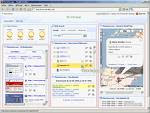
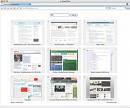 Speed Dial is a feature built into the Opera web browser that provides live thumbnail previews and keyboard shortcuts to some of your favorite web sites. Speed Dial's functionality was such a hit that it was quickly released as a Firefox extension (original post) and mimicked by web-based applications. Whatever your flavor, Speed Dial makes keeping an eye on your favorite sites a breeze.
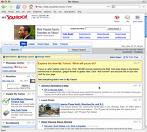 Yahoo has been courting users as both a start page and a search engine forever, and while many people still prefer regular old Yahoo.com as their start page, the newer My Yahoo Beta builds on that idea with a more customizable interface along the lines of start pages like Netvibes and iGoogle. If you never liked the original Yahoo homepage then My Yahoo isn't for you, but if you were, My Yahoo adds more and better features to the already popular news-based start page.


Hello world!
-
Welcome to WordPress. This is your first post. Edit or delete it, then
start writing!
8 years ago